Support & Advice
Help for trouble-free shipping label printing
Printing shipping labels, how difficult can it be? Printing shipping labels is one of the most common label applications. It happens daily at webshops, both large and small. But of course also at large logistics organizations for internal transport, international transport, and more.
Not the most exciting part of the logistics process, but certainly a very important one. Without good shipping labels, parcels will not reach your customers. What should you pay attention to, and how do you print the perfect shipping label?
📦 View starter sets for shipping labels
Printing shipping labels: common problems
Do you want to print your shipping label? Businesslabels helps you with label printers for shipping labels!
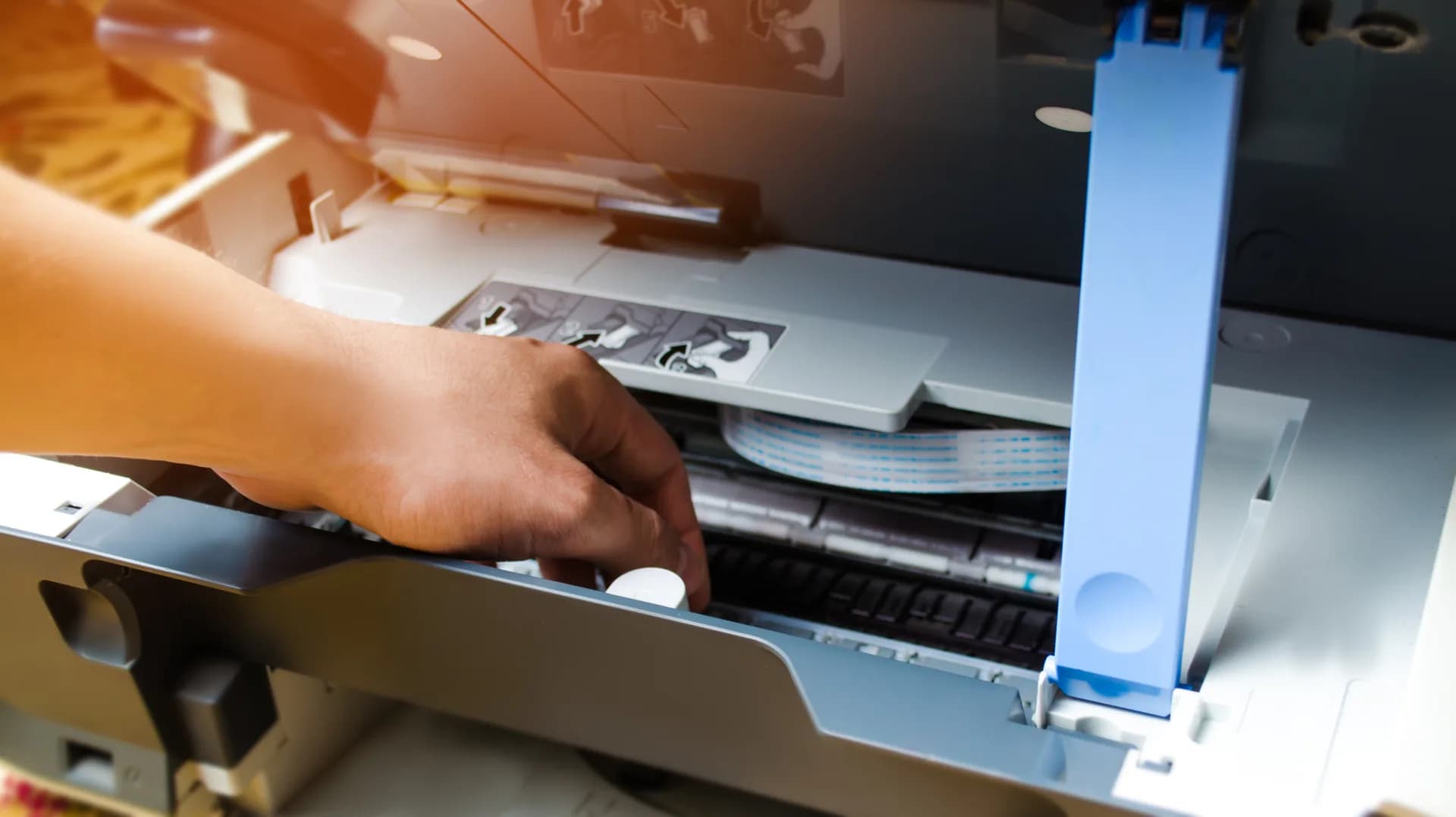
When printing shipping labels, you can run into many problems. For the most common printing problems, the solution is very simple, but you do need to know what to look for. The exact names and the correct place to change the settings differ per label printer brand and operating system.
Where to look differs greatly per printer brand, but the OS you are using also makes a big difference, such as Windows versus Mac OS. That is why it is especially important to know what you are looking for and what changing the settings does.
💡 Helping customers solve problems when printing shipping labels, labels and stickers is a daily activity for Businesslabels and a free service for our customers. Contact us and we will look at your question together!
Printing the correct shipping label size
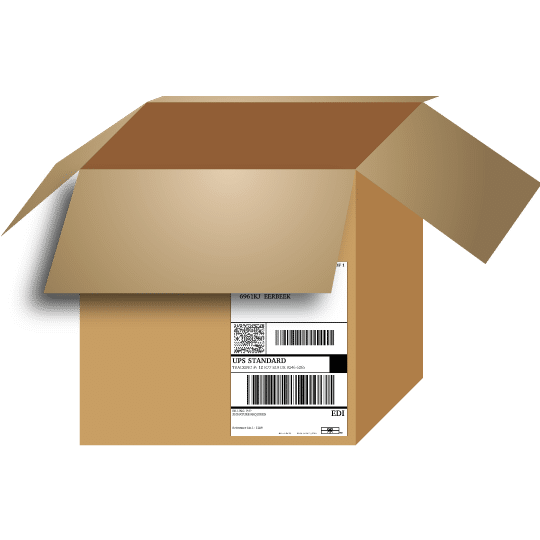
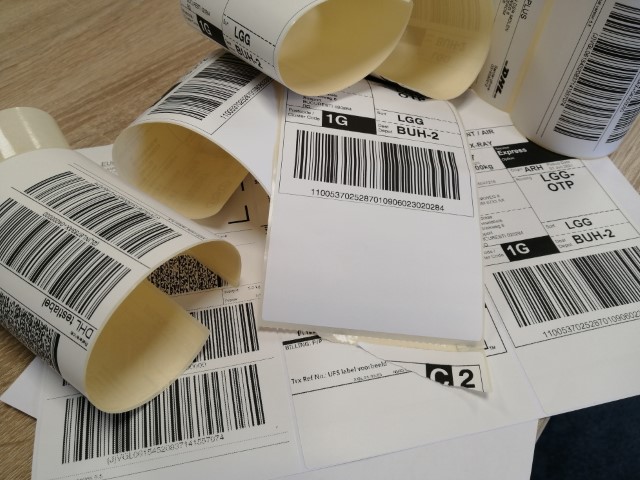
For printing good shipping labels, the correct label size is very important. Every parcel service has its own layout. For example, the PostNL shipping label stands out because of its landscape layout, while almost all others use a portrait label. Fortunately, almost all parcel services use the same label size, the A6 format, but there are exceptions.
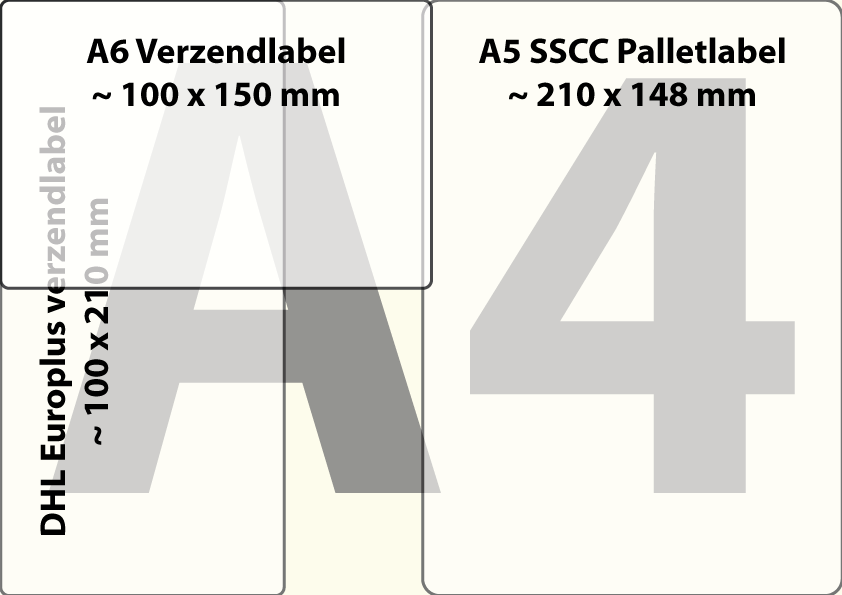
The 3 main sizes:
- A6 shipping labels: By far the most commonly used size for parcels. Officially 105 x 148 mm, but usually around 100 x 150 mm.
- DHL shipping labels: This size, 100 x 210 mm, is used almost exclusively by DHL for services including Europlus.
- A5 shipping labels: Mainly known as pallet labels and used for international transport and SSCC labels, around 210 x 148 mm.

"
Polyestershoppen had taken the big step of shipping with PostNL. However, the labels from PostNL were very different... BusinessLabels, as our regular supplier of labels and printers, helped us solve the quality-related problems. This was not easy, because in the end it turned out to be caused by our own software. I am happy that I can not only rely on good materials and printers from BusinessLabels, but that they are also willing to share their expertise with us.
Kees Schepers
Managing Director / CEO PolyesterShoppen BV
Grainy print, sawtooth effect
With some printing methods, prints can become somewhat grainy. A very recognizable sign is that the barcode lines look like a saw. This is caused by a driver setting that controls how a label printer handles images, also known as dithering.
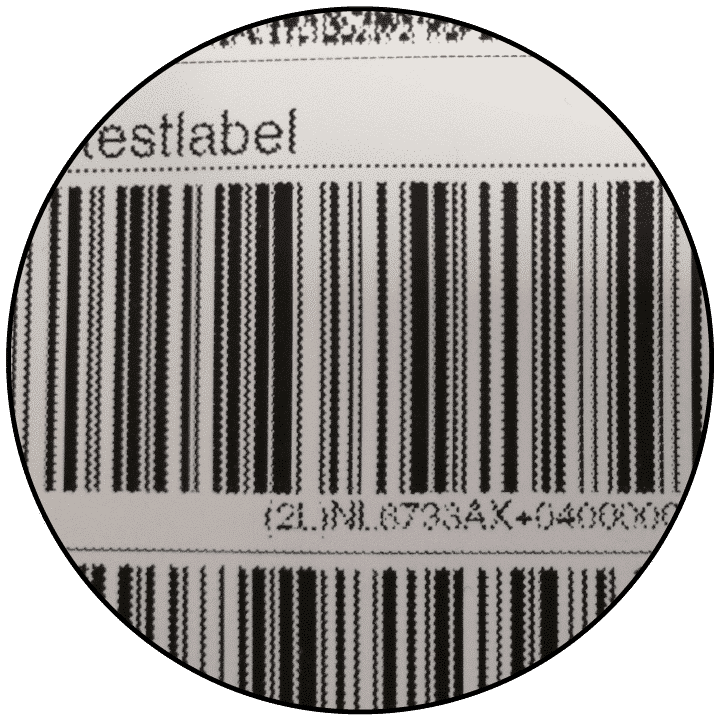 Because a shipping label is not a color image but a 100% black-and-white print, image dithering, or “halftone”, should be turned off.
Turn off dithering
To turn off image dithering, we need to go to the printing preferences in Windows, under Printers and Scanners. It is best to set this directly in the printer driver.
- Godex: Go to the “Images” tab and select “None”.
- Zebra: Go to the “Dithering” tab and select “None”.
- Dymo LabelWriter: Go to “Advanced” and select “Photo Quality” for the Halftone option and “Enhanced” for Color Printing Mode.
On a Mac, the setup is completely different again, but this gives a good guideline.
Poor or unreadable labels
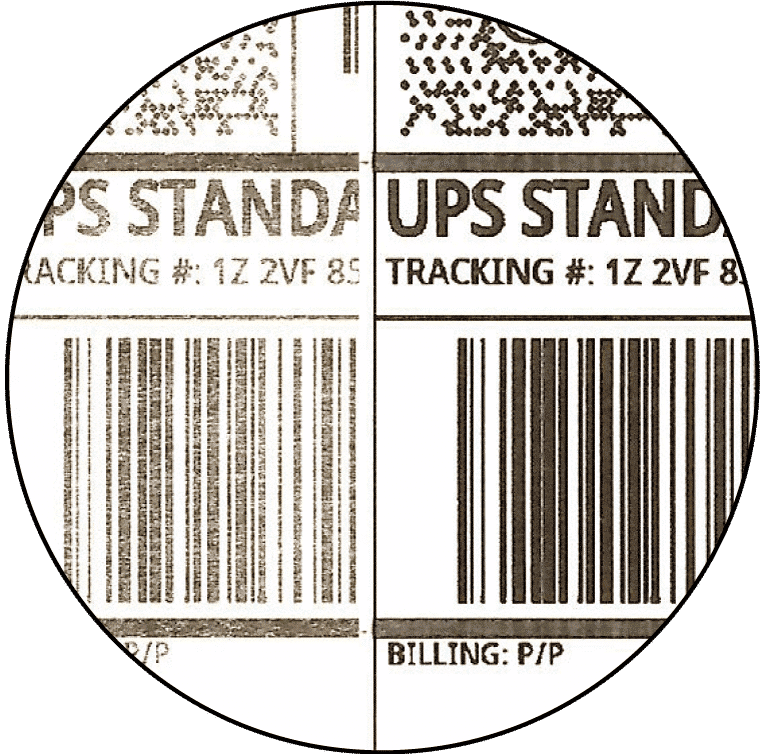 Shipping labels are almost always printed with a thermal label printer. If the temperature or speed is not set correctly, the print will not be good either. If the temperature is too low, the labels turn gray; if the heat is too high, the white lines in the barcode become clogged.
Print speed and temperature
There are countless terms for printhead temperature: Darkness, Density and Print Density.
Often, these settings have a checkbox enabled that says “Use printer settings”. This checkbox must be disabled in order to make changes.
First make sure the print speed is set to a medium setting. Only then adjust the temperature in small steps, maximum 2. Print a test label and evaluate it. Keep doing this until the print is optimal.

"
Businesslabels likes to make things easy for its customers, which is why we offer many affordable starter sets for printing shipping labels. In addition, we offer free remote assistance during installation and with settings issues. This ensures that all our customers can print their shipping labels quickly and easily. Printing shipping labels properly also depends heavily on choosing the right printer.
Ivar van der Molen
Commercial Manager Smart2B - Businesslabels
Scaling shipping labels
Shipping labels in the printer often have dimensions that differ slightly from the intended format. Fortunately, making the print fit is fairly simple. When printing PDF files, several options can be selected.
🗜️
From A6 to 100x150 mm
Automatic scaling is usually not necessary, as there are often sufficient margins. If it is necessary, let the PDF reader handle it automatically.
🖨️
From A4 printer to label printer
With office printers, there are often multiple labels on one A4 sheet. Adjust the format in your software or portal settings to “Label printer” for the correct PDF output.
⚙️
Printer control
For printing from software, Businesslabels recommends choosing a ZPL print command, or RAW printing, wherever possible. This prevents many problems.
Still can’t figure it out?
No problem, we are ready to help. Contact us and our experts will gladly help you solve your printing problems.
📞 Contact us